2. Permissions and Roles – Central Bank Portal

2.1 User Types and Roles

Your role as a Portal User depends on the permissions you have. There are 3 main roles:

Portal User

You are a Portal User if you have registered for access to the Portal. This includes “Business Administrators” and “Portal Administrators”.

To get started, contact the Portal Administrator of your institution. Ask them to add you with the permissions you need (for example, to send and receive messages).

Business Administrator

You are a Business Administrator if you have “Manage Access” permissions. With these permissions you can add or remove permissions for other Portal Users.

Key points:

  • You can only manage permissions you have been given
  • If you have one or more “Manage Access” permissions, you automatically become a Business Administrator.

Portal Administrator

You are a Portal Administrator if you manage your institution’s Portal User access. You can add and remove Portal Users and assign roles to other users.

Your key responsibilities:

  • Manage user access and permissions
  • Add and remove Portal Users
  • Assign roles to other users
  • Give users the right access and permissions for your institution (user attestation).

For more details on the Portal Administrator role, see section 2.2.2 What is the Role of a Portal Administrator?

Important: All Portal Users are responsible for using the Portal in accordance with the Portal Terms of Use.

Note: These steps apply only to your institution’s first Portal Administrator. After setup, your Portal Administrator manages all user access and changes.

Your institution’s first user on the Portal will be the Portal Administrator. When Central Bank of Ireland asks you to register, follow these steps.

  1. Identify the person who will act as your Portal Administrator
  2. Ask that person to register for a Portal account using the standard registration process
  3. First-time Administrators should email onlinereturns@centralbank.ie to request to be linked to your institution. Include your institution’s full name, your institution’s C-Code (unique identifier), the Portal Administrator’s full name and the Portal Administrator’s person code
  4. Once the Online Returns team has processed your request, they will email confirmation. The Portal Administrator should then refer to section 2.2.4 What do I Need to do When I am set up as Portal Administrator?

2.2 Portal Administration Overview

Every institution using the Central Bank of Ireland Portal must have a Portal Administrator. Your Portal Administrator manages your institution’s overall use of the system by managing user access and permissions appropriately.

You manage permissions for Portal Users in your institution.

Your key responsibilities:

  • Manage permissions - decide who can send messages, add or remove users, and access other Portal features
  • User attestation -  regularly review and confirm that your institution’s users have the correct access they need
  • Assign roles - you can assign other users as Administrators on the Portal.

For more details on specific permissions, see section 2.3.3 What are the Different Permission Groups and Permissions Available to Portal Users?

Your institution manages the Portal Administrator role. Ask your manager or department head who holds this role.

Once you are linked to your institution on the Central Bank of Ireland Portal, you can see a list of Portal Administrators on your institution’s home page. Click the “Home” link in the main navigation.

You manage your institution’s users’ access to the Central Bank of Ireland Portal. There are a few tasks you need to complete when assigned this role.

Step 1: Review Your Responsibilities

First, review your responsibilities as a Portal Administrator (see section 2.2.2 What is the Role of a Portal Administrator?).

Step 2: Set up Your Permissions

When you are first linked to an institution as Portal Administrator, you automatically receive certain permissions:

You must manually assign all other permissions you need.

If you are leaving your role as Portal Administrator, you must ensure that at least one other Portal Administrator is in place for your institution.

If there are currently no other Portal Administrators, you must:

  1. Agree who will take on the role
  2. Update their profile to assign them the Portal Administrator role (see section 2.4.1  How can Portal Administrators Assign the Portal Administrator Role to Another Portal User?)
  3. Ensure their permissions are properly set up (see section 2.2.4 What do I Need to do When I am set up as Portal Administrator?).

2.3 Access and Permissions

Once you register, ask your Portal Administrator to be linked to your institution’s profile on the Portal.

Your Portal Administrator is responsible for:

  • Assigning and managing all your permissions for different Portal functionality
  • Ensuring you have appropriate access to perform your role.

You can see your Portal Administrator(s) by clicking the “Home” link in the main navigation.

Once your Portal Administrator links you to an institution, you will see the following:

  • “Home”: Summary dashboard showing recent “Pending Actions” and a list of your “Portal Administrators”
  • “Institution Details”: Various information the Central Bank holds about your institution, organised into sections like “General Details”, “Activities” and “Persons”
  • “My Institution Profile”: Your current list of Portal permissions
  • “Pending Actions”: All in-progress and completed “Pending Actions” you have permission to view
  • “Help”: These help pages on the website.

If you are a Portal Administrator, you will also see a “Portal Administration” menu option. This allows you to access the following:

Your Portal Administrator (or Business Administrator in some cases) can also give you additional permissions. Reach out to your Portal Administrator directly or use the in-built functionality (see section 2.5.1 How do I Request a Change to my Permissions?).

To update permissions, you must be a Portal Administrator and/or have “Manage Access” permissions.

The “Manage Permissions” screen is organised into categories of permissions. These control whether a Portal User can access specific menu items and functionality. This does not affect the general menu options available to everyone (see section 2.3.2 What are the General Permissions all Users Have When First Linked to an Institution?).

Manage Permissions interface showing various permission categories with checkboxes for “View”, “Create”, “Update”, “Delete”, and “Manage Access” options.

Permission Categories and Available Permissions

CategoryDescriptionAvailable Permissions
Institution AdministratorSets the user to be Portal Administrator.Tick to make the user a Portal Administrator; untick to remove this role.
DelegateEnables users to be assigned as a delegate. Delegates are typically third-party service providers given rights to perform certain tasks on behalf of your institution.Tick to enable the user to perform delegated actions; untick to remove this role.
MessagesEnables users to work with Portal messages at an individual and institution level. Messages are secure communications between the Central Bank of Ireland and your institution sent via the Portal. Note: Messages may contain sensitive data. Only assign institution-level permissions to users who need access to view all your institution's messages."View" and "Create" permissions are available at individual level. "View" and "Create" permissions are available for messages at an institution level, allowing a user to view messages sent and received by any users linked to an institution.
Portal AdministrationEnables users to administer other Portal Users, including access. Enables users to administer "Delegates" (certain institution types only)."Add/remove" and "Manage Access" Portal User permissions are available. "View", "Add", "Remove" and "Manage Access" delegate permissions are available.
Request ChangeEnables users to request changes to certain fields of data that the Central Bank holds and to manage those requests."View", "Create", "Update" and "Delete" permissions are available for request changes. Permissions are available per request change, so it is possible to be able to view some and add others, if desired.

Important Notes

  • For all permissions, a “Manage Access” tick box is available. If a user has a “Manage Access” permission assigned, they can manage the permissions of other users for that permission only
  • Any user assigned one or more “Manage Access” permissions will automatically become a Business Administrator (see section 2.1.1 Types of Portal Users)
  • There is no need to give Portal Administrators “Manage Access” permissions since these are automatically provided once the “Institution Administrator” tick box is ticked.

2.4 User Management

You can give trusted Portal Users within your institution the ability to manage permissions for other Portal Users. Here is how to assign them as Portal Administrators.

  1. Click “Portal Administration” > “Manage Users” in the navigation menu. You will see a list of users linked to your institution
  2. Find the user you want to make an Administrator. Use the search box to find them quickly
  3. Click “Actions” next to the user’s name and select “Manage Permissions”. You will see their current permissions
  4. To make this user a Portal Administrator, tick the box titled “Institutional Administrator” at the top of the screen.
  5. Click “Save” at the bottom of the page. A confirmation popup will appear. Click “Yes” to confirm or “No” to cancel.
  6. If you click “Yes”, another message will appear advising that the Portal User will need to log out and back in for the changes to take effect
  7. Once confirmed, the user will have the role of “Admin”. They will automatically receive “Manage Access” permissions across all permission groupings. This means they can add and remove any type of permission for all other Portal Users also linked to that institution
  8. If you want to leave the “Manage Users” screen without saving, click “Cancel”. A warning message will appear. Click “OK” to continue or “Cancel” again to return to updating the Portal User’s permissions.

Important Notes

  • Portal Administrators are not automatically able to access specific functionality in the Portal. They must assign this to themselves or ask another Administrator. For more information, see section 2.2.4 What do I Need to do When I am set up as Portal Administrator?
  • You can remove the Portal Administrator role from a user by following the above procedure, untick the box giving Portal Administrator permissions. This will remove “Manage Access” rights, but they will keep any other permissions previously assigned.

You are responsible for adding users to your institution. To do this, you need the “Add/remove Portal User” permission assigned (see section 2.2.4, What do I Need to do When I am set up as Portal Administrator?).

Portal Users must complete registration to use the Portal and provide you with:

  • The email address they used when registering
  • Their “Person Code” (supplied by the Central Bank following registration).

Steps to add a User to an Institution

  1. Go to Portal Administration > Manage Users. You will see a list of users currently linked to your institution
  2. Click the “Add New User” button on the right-hand side of the screen. If you cannot see this button, check that you have the “Add/Remove user” permission assigned to yourself (see section 2.2.4 What do I Need to do When I am set up as Portal Administrator?).

  3. “Manage Users” interface with “Add New User” button on the side of the screen.

  4. Enter the person code and email address, then click “Find User”
  5. Form titled “Manage Users” with input fields for “Person Code” and “Email”, with a “Find User” button.

  6. If the system finds the user, you will see confirmation with: “Person Name”, “Person Code” and “Email Address”
  7. Click “Add User” to add them to your institution. We will send them a confirmation email. Next, assign them the permissions they need (see section 2.4.5 User Management Interface and Permission Management)
  8. If the system does not find the user, an error message will appear. Check the details and try again.

  9. Error message stating “No User Found. Invalid User Details entered. Please check that the details being entered are correct and retry”. Shows an “OK” button.

  10. You may also see warning messages if: the user was previously removed from this institution, or the user is already active in this institution.

How Does Portal Administrator Remove a User From Their Institution?

You can remove “Active” Portal Users previously added to your institution. You need the “Add/remove Portal User” permission (see section 2.2.4 What do I Need to do When I am set up as Portal Administrator?).

To remove a user from an institution.

  1. Go to Portal Administration > Manage Users. You will see a list of users linked to your institution
  2. Find the user you want to remove. Use the search box to find them quickly
  3. Click “Actions” > “Remove User” for that user
  4. A confirmation message will appear with details of the Portal User to be removed.
  5.  

    Confirmation message with user details and text “Are you sure you want to remove this user from the institution?”. Shows “Confirm” and “Cancel” buttons.

  6. Click “Confirm” to remove this user from your institution. A message will confirm that the removal was successful
  7. Click “Cancel” to cancel this action and return to the “Manage Users” screen.

You cannot add a Portal User to an institution for which they are already an active user.

When you try to add a Portal User to an institution where they are already active, a warning message will appear.

Warning message with text “Failure, User has already been added to this Institution” and an “OK” button.

When you try to add a Portal User to an institution from which they were previously removed, a warning message will appear.

Warning message with text “Warning, user has been previously removed from this institution. Do you want to re-add them?” with “Cancel” and “Continue” buttons.

Click the “Continue” button on the warning message to proceed with adding the user or click the “Cancel” button to cancel the action.

What Does the “Manage Users” Screen Allow Portal Administrator to do?

The “Manage Users” screen allows you to control user access and permissions.

  1. Go to Portal Administration > Manage Users. You will see a list of users for your institution with details including their role, name, person code, email address, status and last login date.
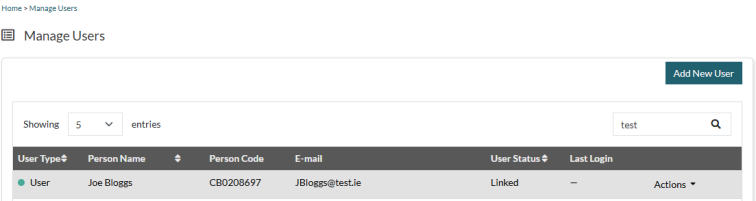
  2. Table with columns for “Role”, “Name”, “Person Code”, “Email”, “Status”, and “Last Login Date”, with an “Actions” button for each user.

  3. Click “Actions” in the right-hand column for a particular user and select one of the following.

  4. “Status Changes” – review the status changes for each user.

    “Manage Permissions” – add and remove permissions for each user (see section 2.4.5).

    “Remove User” – unlink a user from your institution (for example because they no longer work there).


How do Administrators on the Portal Manage a Portal User’s Permissions?

You are responsible for giving permissions to Portal Users linked to the institution you administer. This gives them access to certain functionality, such as messages and request changes.

Before you can manage a user’s permissions, they must be added to your institution (see section 2.4.2 User Lifecycle Management (Add, Remove, and Reactivate Users). You must also be either:

  • A Portal Administrator (can manage all users)

  • OR

  • A Business Administrator (can manage specific permissions).

Steps to update a user’s Portal permissions.

  1. Go to Portal Administration > Manage Users. You will see a list of all users linked to your institution
  2. Find the user you want to manage. Use the search box to find them quickly
  3. Click “Actions” next to the user’s name and select “Manage Permissions”
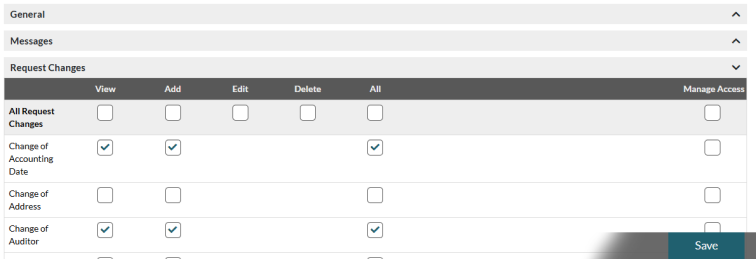
  4. You will see different types of permissions organised into groups. For each permission group you will also see the various permissions available for a user, such as “View”, “Add”, “Edit” or “Delete”
  5. Update the Portal User’s permissions as follows:
  6. To add permissions, tick the boxes for the permissions you want to give this user

    To remove permissions, untick the boxes

    To add or remove all permissions in a group, tick or untick the “All” box.
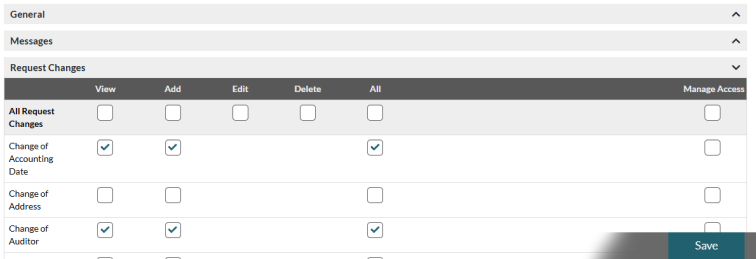
    Permission management interface with expandable categories and checkboxes for various permission types.

  7. Click “Save” when all updates are completed. A confirmation message will appear. The user must log out and back in for changes to take effect
  8. Click “Cancel” to exit without saving. A warning will appear. Click “OK” to confirm or “Cancel” to return.

Important Notes


How Does Portal Administrator View an Existing User’s Permissions?

If you are a Portal Administrator or Business Administrator, you can view an existing Portal User’s permissions as follows.

  1. Go to Portal Administration > Manage Users. You will see a list of users linked to your institution
  2. Find the user. Use the search box to find them quickly
  3. Click “Actions” next to the user’s name and select “Manage Permissions”
  4. You will see the user’s permissions. If you are a Business Administrator, you will only see permissions you can manage
  5. Click the arrows to expand or collapse permission groups. Use “Expand All” or “Collapse All” to expand or collapse everything at once.

Permission change requests from Portal Users appear initially as actions in the “Pending Actions” tab of a Portal Administrator.

When you open the pending action, an “Approve Permissions” form will show. This shows what the user is requesting. You can approve or reject it.

For more details, see section 2.5.1 How do I Request a Change to my Permissions?

2.5 Permission Requests

You can ask your Portal Administrator directly, or use the Portal to request permission changes.

  1. Click My Institution Profile > My Permissions. You will see your current permissions
  2. Find the permission you want and click “Request Change”

  3. Complete the form. Select a Portal Administrator to approve your request. Explain what permissions you need
  4. Click “Confirm” to send your request. Both you and the Portal Administrator will see it in your pending actions.

Important: After the Portal Administrator approves your request, log out and back in for the changes to take effect.

Click “Cancel” to return to your list of permissions without sending a permission change request.