You can set up notification reminders so you do not miss return deadlines.
Setting up Notifications
- Go to the “Returns” tab on the Portal
- Click “Manage Notifications”
- You can choose which users receive notifications for a specific return or all returns.
- Select the users who should receive notifications
- Click “Save”.
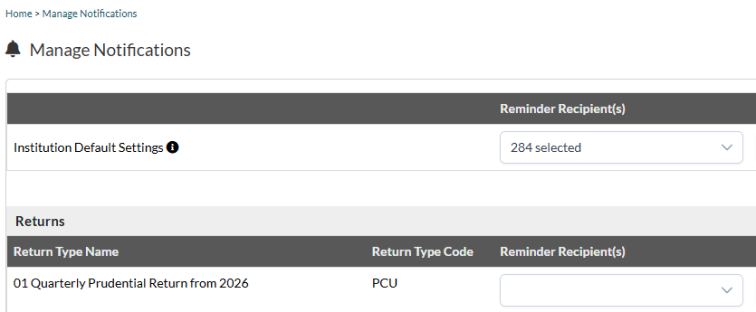
Once a user is assigned, they will receive notifications about due returns. They will receive notifications as Portal messages in the “Messages” tab.
I did not Receive a Notification for my Return due Date
If you did not receive a notification, here is why:
- You do not have notification permissions – ask your Portal Administrator to set up notifications for you
- You were not assigned as a contact – your Portal Administrator must assign you as a notification contact for the return.
Once set up, notifications will appear in your messages.
How to Assign Permissions for Notifications
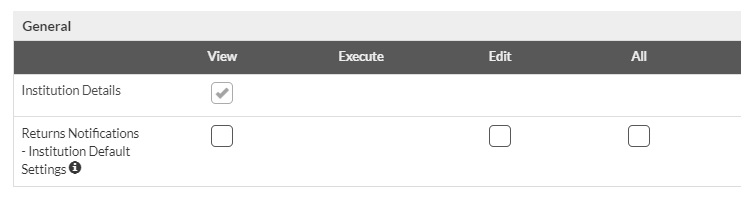
Your Portal Administrator can assign notification permissions:
- Go to Portal Administration > Manage Permissions
- Find the notification permission categories
- Tick the boxes for the notifications you need
- Click “Save”.
Portal Users should ask their Portal Administrator for notification access.
Where can I see my Notifications?
Once you have notification permissions and are assigned as a contact, notifications will appear in Portal “Messages”.
- Go to Portal Menu > Messages
- You will see your notifications there.